
Configuration Management
Twenty offers two configuration modes to suit different deployment needs: Admin panel access: Only users with admin privileges (canAccessFullAdminPanel: true) can access the configuration interface.
1. Admin Panel Configuration (Default)
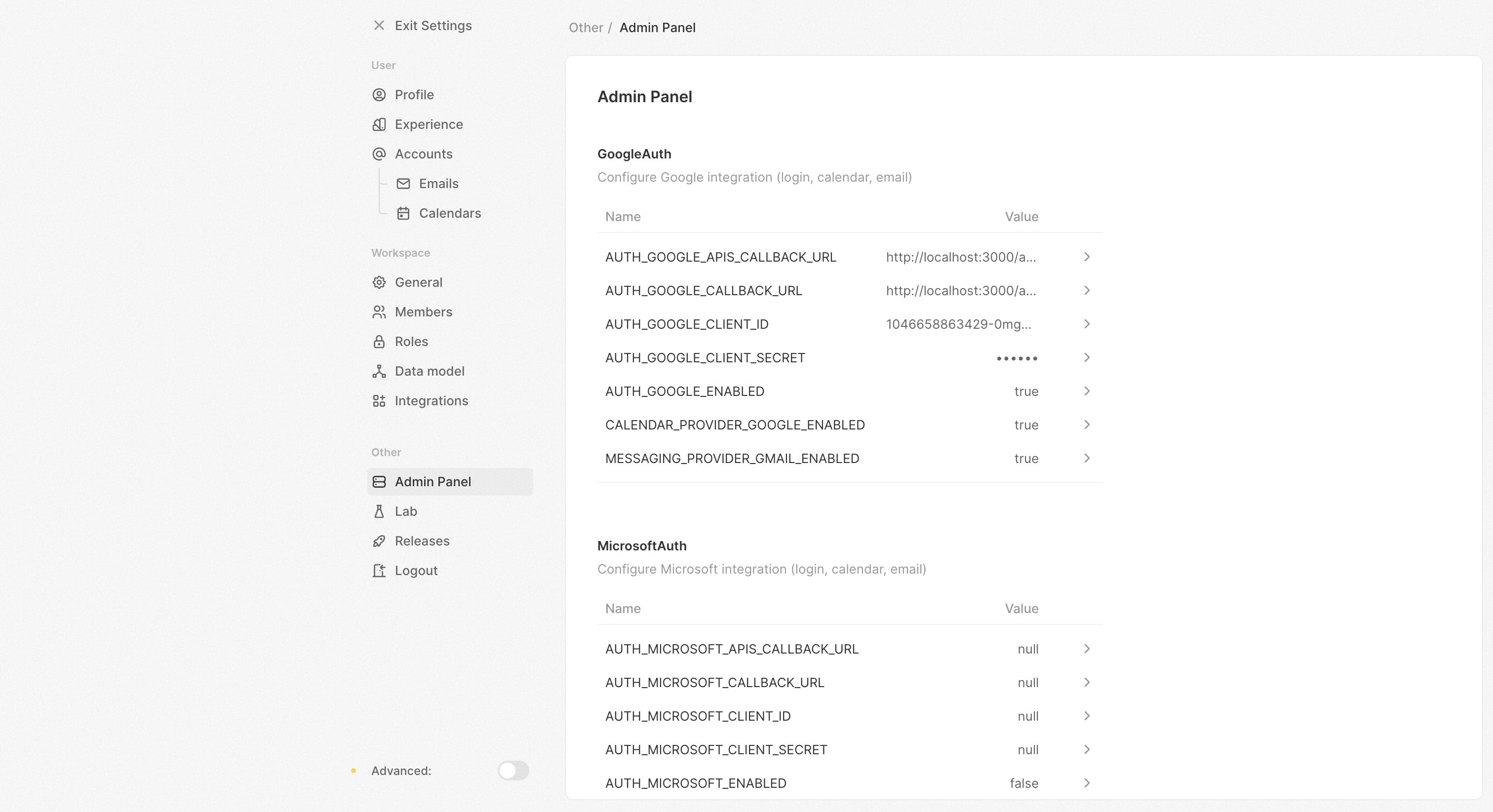
- Access your Twenty instance (usually
http://localhost:3000) - Go to Settings / Admin Panel / Configuration Variables
- Configure integrations, email, storage, and more
- Changes take effect immediately (within 15 seconds for multi-container deployments)
- Authentication - Google/Microsoft OAuth, password settings
- Email - SMTP settings, templates, verification
- Storage - S3 configuration, local storage paths
- Integrations - Gmail, Google Calendar, Microsoft services
- Workflow & Rate Limiting - Execution limits, API throttling
- And much more…
Encryption keys
Twenty uses two env-only encryption keys:
For backward compatibility, if
ENCRYPTION_KEY is unset, Twenty falls back to APP_SECRET for at-rest encryption — matching the legacy behaviour for older deployments. New installs should always set a dedicated ENCRYPTION_KEY.
Generate values with openssl rand -base64 32 and store them somewhere safe (a secrets manager, sealed config, etc.). Losing ENCRYPTION_KEY means losing access to every secret stored in the database.
To rotate ENCRYPTION_KEY without downtime, see the Key rotation guide.
2. Environment-Only Configuration
.env files:
- Set
IS_CONFIG_VARIABLES_IN_DB_ENABLED=falsein your.envfile - Add all configuration variables to your
.envfile - Restart containers for changes to take effect
- Admin panel will show current values but cannot modify them
Multi-Workspace Mode
By default, Twenty runs in single-workspace mode — ideal for most self-hosted deployments where you need one CRM instance for your organization.Single-Workspace Mode (Default)
- One workspace per Twenty instance
- First user automatically becomes admin with full privileges (
canImpersonateandcanAccessFullAdminPanel) - New signups are disabled after the first workspace is created
- Simple URL structure:
https://your-domain.com
Enabling Multi-Workspace Mode
- Multiple workspaces can be created on the same instance
- Each workspace gets its own subdomain (e.g.,
sales.your-domain.com,marketing.your-domain.com) - Users sign up and log in at
{DEFAULT_SUBDOMAIN}.your-domain.com(e.g.,app.your-domain.com) - No automatic admin privileges — first user in each workspace is a regular user
- Workspace-specific settings like subdomain and custom domain become available in workspace settings
DNS Configuration for Multi-Workspace
When using multi-workspace mode, configure your DNS with a wildcard record to allow dynamic subdomain creation:Restricting Workspace Creation
In multi-workspace mode, you may want to limit who can create new workspaces:canAccessFullAdminPanel can create additional workspaces. Users can still create their first workspace during initial signup.
Gmail & Google Calendar Integration
Create Google Cloud Project
- Go to Google Cloud Console
- Create a new project or select existing one
- Enable these APIs:
Configure OAuth
- Go to Credentials
- Create OAuth 2.0 Client ID
- Add these redirect URIs:
https://{your-domain}/auth/google/redirect(for SSO)https://{your-domain}/auth/google-apis/get-access-token(for integrations)
Configure in Twenty
- Go to Settings → Admin Panel → Configuration Variables
- Find the Google Auth section
- Set these variables:
MESSAGING_PROVIDER_GMAIL_ENABLED=trueCALENDAR_PROVIDER_GOOGLE_ENABLED=trueAUTH_GOOGLE_CLIENT_ID={client-id}AUTH_GOOGLE_CLIENT_SECRET={client-secret}AUTH_GOOGLE_CALLBACK_URL=https://{your-domain}/auth/google/redirectAUTH_GOOGLE_APIS_CALLBACK_URL=https://{your-domain}/auth/google-apis/get-access-token
https://www.googleapis.com/auth/calendar.eventshttps://www.googleapis.com/auth/gmail.readonlyhttps://www.googleapis.com/auth/profile.emails.read
If your app is in test mode
If your app is in test mode, you will need to add test users to your project. Under OAuth consent screen, add your test users to the “Test users” section.Microsoft 365 Integration
Create a project in Microsoft Azure
You will need to create a project in Microsoft Azure and get the credentials.Enable APIs
On Microsoft Azure Console enable the following APIs in “Permissions”:- Microsoft Graph: Mail.ReadWrite
- Microsoft Graph: Mail.Send
- Microsoft Graph: Calendars.ReadWrite
- Microsoft Graph: User.Read
- Microsoft Graph: openid
- Microsoft Graph: email
- Microsoft Graph: profile
- Microsoft Graph: offline_access
All of these permissions are required, even if you only want to sync emails and calendar events. Twenty always requests “Mail.ReadWrite”, “Mail.Send” and “Calendars.ReadWrite” when a user connects their account, so read-only permissions like “Mail.Read” or “Calendars.Read” are not enough.
If your tenant does not let regular users consent to these permissions, they will see error AADSTS90094 when connecting their account. An administrator can fix this by clicking “Grant admin consent for ” in the app registration’s “API permissions” page.
Authorized redirect URIs
You need to add the following redirect URIs to your project:https://{your-domain}/auth/microsoft/redirectif you want to use Microsoft SSOhttps://{your-domain}/auth/microsoft-apis/get-access-token
Configure in Twenty
- Go to Settings → Admin Panel → Configuration Variables
- Find the Microsoft Auth section
- Set these variables:
MESSAGING_PROVIDER_MICROSOFT_ENABLED=trueCALENDAR_PROVIDER_MICROSOFT_ENABLED=trueAUTH_MICROSOFT_ENABLED=trueAUTH_MICROSOFT_CLIENT_ID={client-id}AUTH_MICROSOFT_CLIENT_SECRET={client-secret}AUTH_MICROSOFT_CALLBACK_URL=https://{your-domain}/auth/microsoft/redirectAUTH_MICROSOFT_APIS_CALLBACK_URL=https://{your-domain}/auth/microsoft-apis/get-access-token
Configure scopes
See relevant source code- ‘openid’
- ‘email’
- ‘profile’
- ‘offline_access’
- ‘Mail.ReadWrite’
- ‘Mail.Send’
- ‘Calendars.ReadWrite’
- ‘User.Read’
If your app is in test mode
If your app is in test mode, you will need to add test users to your project. Add your test users to the “Users and groups” section.Background Jobs for Calendar & Messaging
After configuring Gmail, Google Calendar, or Microsoft 365 integrations, you need to start the background jobs that sync data. Register the following recurring jobs in your worker container:Outbound Connections to Internal Hosts
By default, Twenty refuses outbound connections to private/internal IP addresses (SSRF protection). This covers HTTP workflow actions, webhooks, SSO identity providers and IMAP/SMTP/CalDAV connections. If your identity provider, mail or calendar server runs on a private network, list its hostname or IP literal:http://keycloak:8080/realms/twenty, list keycloak. Every other private address stays blocked, and even an allowed host can never reach the cloud metadata address range. Set the variable to * to disable the protection entirely, which is only appropriate on trusted, isolated networks.
OUTBOUND_HTTP_SAFE_MODE_ENABLED is deprecated. While it is set to false, the protection stays fully off and OUTBOUND_HTTP_ALLOWED_INTERNAL_HOSTS is ignored, so remove it when you migrate to the list.
This list does not cover AI file attachments: images and PDFs reach the model as links built from SERVER_URL, fetched either by the AI provider or by the AI SDK in the worker, which refuses private addresses. For attachments to work, SERVER_URL must be public; with a localhost or private SERVER_URL, AI chats and agents only work with text.
Email Configuration
- Go to Settings → Admin Panel → Configuration Variables
- Find the Email section
- Configure your SMTP settings:
- Gmail
- Office365
- smtp4dev
You will need to provision an App Password.
- EMAIL_DRIVER=smtp
- EMAIL_SMTP_HOST=smtp.gmail.com
- EMAIL_SMTP_PORT=465
- EMAIL_SMTP_USER=gmail_email_address
- EMAIL_SMTP_PASSWORD=‘gmail_app_password’
S3 Storage
SetSTORAGE_TYPE=S_3 and configure the STORAGE_S3_* variables through the admin panel or .env.
A minimal
.env for AWS S3 with an IAM user:
The Docker Compose file forwards
STORAGE_TYPE, STORAGE_S3_REGION, STORAGE_S3_NAME, STORAGE_S3_ENDPOINT and the two credential variables from .env. Set the presigned URL variables in the admin panel, or add them to the environment block of the server and worker services.Credentials
WhenSTORAGE_S3_ACCESS_KEY_ID is unset, the server resolves credentials through the AWS SDK default chain: the AWS_ACCESS_KEY_ID and AWS_SECRET_ACCESS_KEY environment variables, a shared credentials file, an ECS task role, an EKS service account role (IRSA), or an EC2 instance profile.
CredentialsProviderError: Could not load credentials from any providers on the first upload, while the UI only shows a generic error.
Bucket permissions
An upload is first written to a pending path, validated, then copied to its final path, and the pending object is deleted. The policy therefore needs more thans3:PutObject:
s3:ListBucket is used to delete folders, for example when a workspace is deleted. Without it, S3 answers requests for missing objects with access denied instead of not found, so the server cannot tell a missing file from a permissions problem.
Endpoint and addressing
Twenty always uses path-style addressing, so requests go tohttps://endpoint/bucket/key. For native AWS S3 leave STORAGE_S3_ENDPOINT unset: the SDK builds https://s3.{region}.amazonaws.com from STORAGE_S3_REGION, which is why a mistyped region surfaces as a DNS error rather than an S3 error. Set the endpoint only for S3-compatible services, or when the server reaches S3 through a VPC interface endpoint.
CORS
WhenSTORAGE_S3_PRESIGNED_URL_ENABLED is true, browsers talk to the bucket directly. Downloads are GET requests, and uploads are PUT requests that carry a Content-Type header, which makes the browser send a preflight request first. The bucket’s CORS policy must therefore allow your Twenty origin, both methods and that header:
Troubleshooting
Upload failures reach the UI as a generic error. The underlying S3 error is in the server logs (docker compose logs server) and in the GraphQL response visible in the browser’s network tab.
Logic Functions & Code Interpreter
Twenty supports logic functions for workflows and the code interpreter for AI data analysis. Both run user-provided code and require explicit configuration for security.Security Defaults
In production (NODE_ENV=production): Both logic functions and code interpreter default to Disabled. You must explicitly enable them withLOGIC_FUNCTION_TYPE and CODE_INTERPRETER_TYPE if you need these features.
In development (NODE_ENV=development): Both default to LOCAL for convenience when running locally.
Logic Functions - Available Drivers
Logic Functions - Recommended Configuration
For development:Code Interpreter - Available Drivers
When using
LOGIC_FUNCTION_TYPE=DISABLED or CODE_INTERPRETER_TYPE=DISABLED, any attempt to execute will return an error. This is useful if you want to run Twenty without these capabilities.API and front-end on separate hosts
Only relevant if you do not let the back-end serve the front-end. Same-origin deployments need nothing here. Declare every browser origin that talks to the API, comma separated.SERVER_URL
and FRONTEND_URL are already trusted. The server logs a warning when a browser
calls it from an undeclared origin.
AUTH_COOKIE_SAME_SITE=none, which requires HTTPS.
With multi-workspace enabled, do not list every workspace subdomain here.
Instead, route API paths (/graphql, /metadata, /rest, /auth/,
/client-config, /file) to the back-end on each workspace hostname, so every
workspace stays same-origin — this is how Twenty Cloud runs.