
Where front components can be used
Front components can render in four locations within Twenty:- Side panel — Non-headless front components open in the right-hand side panel. This is the default behavior when a front component is triggered from the command menu.
- Widgets (dashboards and record pages) — Front components can be embedded as widgets inside page layouts. When configuring a dashboard or a record page layout, users can add a front component widget.
- App settings — Pointed at by a
defineSettingsMenuItem()declaration, the front component renders the page behind one of the app’s settings menu items. An app can declare several. - AI chat — A logic function exposed as an AI tool can name a front component, which then renders that tool’s calls inline in the chat in place of the default step row.
- Pair it with a command menu item — registers it in the command menu (Cmd+K) and, optionally, as a pinned quick-action.
- Embed it as a widget in a page layout — places it on a record’s detail page or dashboard.
- Point a
defineSettingsMenuItem()at it — renders it behind one of the app’s settings menu items. - Name it from a logic function’s
toolTriggerSettings— renders the tool’s calls in the AI chat.
Basic example
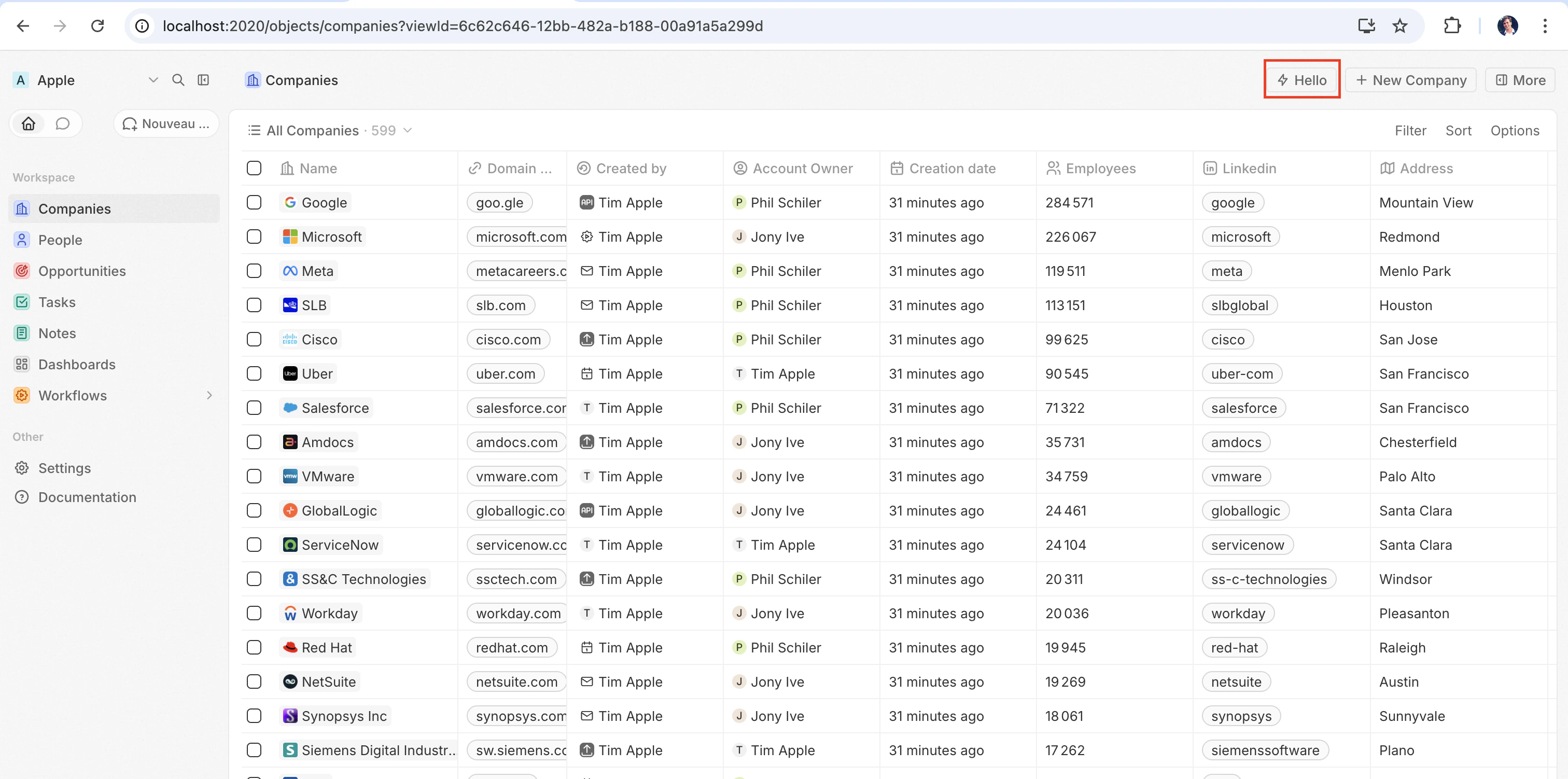
The quickest way to see a front component in action is to pair it with adefineCommandMenuItem, so it appears as a quick-action button in the top-right corner of the page:
src/front-components/hello-world.tsx
src/command-menu-items/hello-world.command-menu-item.ts
yarn twenty dev (or running a one-shot yarn twenty apply), the quick action appears in the top-right corner of the page:
Configuration fields
Placing a front component on a page
Beyond commands, you can embed a front component directly into a record page by adding it as a widget in a page layout. See Page Layouts for details.widgetAvailability decides which widget picker offers the component while a page layout is being edited. A front component is built either for record pages, where it works on the shown record, or for dashboards, so it declares one pageLayoutType:
widgetAvailability out for a component that is only opened from a command, a settings menu item or a timeline row. It never limits where a component is displayed: commands, settings menu items and the page layouts your app declares render it whatever its value. The build warns about a visible component that declares none and is opened from nowhere else.
Settings menu items
An app can add its own entries to the settings menu, each rendering a front component. Declare one withdefineSettingsMenuItem() in its own file, pointing at the component that renders it:
src/settings-menu-items/sync-settings.ts
position order.
Declare as many as you need. Twenty’s own General item — auto-upgrade, App URL and connections — always comes first and cannot be overridden by an app; App URL only shows when the app has HTTP-triggered functions.
Fields
position is a decimal, so an item can be slotted between two existing ones without renumbering. Items sort by ascending position, ties broken on universalIdentifier so the order is the same in every workspace. Two items of one app cannot share a position in the same scope — the sync refuses it rather than letting install order decide which renders first.
Workspace and user scope
scope says who an item is configured by:
WORKSPACE(default) — configured once for the whole workspace, alongside the other workspace settings. These are the items that render as tabs on the app’s page.USER— configured by each member for themselves, under their own user settings.
A
USER item renders as a tab on the app’s page under Settings > App
preferences, where only the signed-in member sees it, and only when their
role grants the CONNECTED_ACCOUNTS permission. That page is not enabled in
every workspace yet: where it is not, a USER item is persisted and synced
but nothing renders it.USER item runs as the member viewing it. To store something per person, declare the variable with scope: 'USER': getApplicationVariable returns the viewing member’s value, and your component saves it with updateMyUserApplicationVariable, which writes that member’s value only and needs SystemPermissionFlag.CONNECTED_ACCOUNTS in your app’s role, if it declares one (see Reading and updating variables at runtime). Like a WORKSPACE item, a USER item replaces the generated Variables form, so it should let the member set every user variable your app needs. A workspace variable holds one value shared by everyone, so one member’s save would overwrite another’s.
defineSettingsFrontComponent() is deprecated in favor of
defineSettingsMenuItem(). An app still using it keeps working — its
component is treated as a single Settings menu item — but it can only ever
declare one, which is what defineSettingsMenuItem() exists to lift.Headless vs non-headless
Front components come in two rendering modes controlled by theisHeadless option:
Non-headless (default) — The component renders a visible UI. When triggered from the command menu it opens in the side panel. This is the default behavior when isHeadless is false or omitted.
Headless (isHeadless: true) — The component mounts invisibly in the background. It does not open the side panel. Headless components are designed for actions that execute logic and then unmount themselves — for example, running an async task, navigating to a page, or showing a confirmation modal. They pair naturally with the SDK Command components described below.
src/front-components/sync-tracker.tsx
null, Twenty skips rendering a container for it — no empty space appears in the layout. The component still has access to all hooks and the host communication API.
SDK Command components
Thetwenty-sdk package provides four Command helper components designed for headless front components. Each component executes an action on mount, handles errors by showing a snackbar notification, and automatically unmounts the front component when done.
Import them from twenty-sdk/front-component:
Command— Runs an async callback via theexecuteprop.CommandLink— Navigates to an app path. Props:to,params,queryParams,options.CommandModal— Opens a confirmation modal. If the user confirms, executes theexecutecallback. Props:title,subtitle,execute,confirmButtonText,confirmButtonAccent.CommandOpenSidePanelPage— Opens content in the side panel. Routed pages use the same typedto,params, andqueryParamsprops asCommandLink, plus optionalhash,pageTitle, andresetNavigationStackprops. The workspace route registry decides whether the requestedAppPathsupports the side panel.pageTitleoverrides the panel header title, whileresetNavigationStackclears earlier panel pages before opening the route. Purpose-built panel tools use their own page-specific props.
Command to run an action from the command menu:
src/front-components/run-action.tsx
src/command-menu-items/run-action.command-menu-item.ts
CommandModal to ask for confirmation before executing:
src/front-components/delete-draft.tsx
CommandOpenSidePanelPage to open the current record in the side panel on a specific tab. hash is a page layout tab id without the leading # (default layouts use ids like company-tab-emails or company-tab-timeline; custom layouts use the tab’s own id). If the id doesn’t exist in the record’s layout, the default tab opens instead:
src/front-components/open-company-emails.tsx
Calling a logic function
Front components run browser-side in a Web Worker sandboxed inside an opaque-origin iframe, while logic functions run server-side. There is no direct in-process call between the two — instead, a front component reaches a logic function over HTTP. A logic function declared withhttpRouteTriggerSettings is reachable over HTTP at its route path. RestApiClient treats paths starting with /s/ as app routes, resolves them to the URL your functions are served from, and authenticates them with TWENTY_APP_ACCESS_TOKEN.
On Twenty Cloud, HTTP-triggered logic functions are served on a dedicated per-workspace domain at https://<your-workspace-subdomain>.withtwenty.com<path>. For external callers, copy the exact URL from the function’s HTTP trigger settings or the application’s Settings tab.
A headless front component can run the call on mount via the Command component, then unmount automatically:
src/front-components/sync-prs.tsx
RestApiClient is the logic function’s httpRouteTriggerSettings.path, prefixed with /s. Keep isAuthRequired: true; the TWENTY_APP_ACCESS_TOKEN Twenty mints for your component authenticates the request:
src/logic-functions/fetch-prs.logic-function.ts
TWENTY_APP_ACCESS_TOKEN is injected automatically — see Application
variables. Because secret application variables are
never exposed to front components, keep API keys and other sensitive logic in
the logic function, not in the front component.Calling the Twenty REST API
To call app HTTP routes or read and write Twenty records from a front component, useRestApiClient from twenty-client-sdk/rest. It sends /s/... paths to your workspace’s functions base URL and every other path, including /rest/..., to TWENTY_API_URL.
It always acts as the person looking at the page. runAs: 'application' is a logic-function option only: a component never receives your application’s own token, so asking for it here throws. Put work that needs the app’s own access behind a logic function and call that instead.
options accepts headers, query (a record of query-string params; nullish values are skipped), and an AbortSignal via signal. A non-FormData object body is JSON-serialized automatically. On a 401, the client refreshes the access token once through the host and retries the request.
The base URL and token are resolved from the environment by default. Pass overrides to the constructor when needed — for example in tests:
RestApiClientError exposing status, statusText, url, and the parsed body:
Accessing runtime context
Inside your component, use SDK hooks to access the current user, record, and component instance:src/front-components/record-info.tsx
Object metadata
UseuseSelectedObjectMetadata() to identify the object associated with a record-page widget, a custom timeline row, an object-scoped command, or a front component opened in the side panel with an object (from a command, or through openSidePanelPage with an objectNameSingular). This lets an integration select templates or other configuration for the current object without searching across objects for a record ID.
id (the workspace’s object-metadata UUID), nameSingular, and namePlural. The names are metadata names, such as person and people, rather than display labels.
Object metadata can be available even when no records are selected. It belongs to this front component’s context, so a side panel can expose a different object from the main page. The hook updates when that context changes and returns null when the object cannot be resolved, when no object context is supplied, or when running on an older host that does not provide object metadata.
Application variables
Application variables defined indefineApplication() with isSecret: false are available inside front components via the getApplicationVariable utility:
src/front-components/greeting.tsx
getApplicationVariable always returns a string (or undefined), regardless of the variable’s declared type. The string is serialized consistently by type (booleans as "true" / "false", numbers as decimal strings, arrays / objects as JSON), the same format used for logic-function process.env — parse it yourself (Number(...), JSON.parse(...), === 'true'). See Variable types.
Reading and updating variables at runtime
getApplicationVariable returns the values injected when the component loaded, so a value written afterwards only shows up on the next load. To read the stored values, or to write one (what a settings menu item does when it saves what the user typed), go through MetadataApiClient:
src/front-components/app-settings.tsx
- Your component’s token is bound to your own application.
updateOneApplicationVariabletargets it, soapplicationIdis optional and naming another application is refused. Reading theapplicationVariablesof another application is refused the same way, and an application belonging to another workspace reads as not found. - The key must be one your app declares in
defineApplication(). Writing a key that is not declared is a not found. - Secret variables read back masked, never as the stored value. Writing them works normally.
- Reading a variable’s
value, and writing it, need theAPPLICATIONSsettings permission on both your app’s role and the signed-in person’s role, since the component’s token is the intersection of the two. AddSystemPermissionFlag.APPLICATIONStopermissionFlagUniversalIdentifiersin your application role. - A user variable (
scope: 'USER') is injected with the viewing member’s value, unless it is secret.updateOneApplicationVariablerefuses it: save it withupdateMyUserApplicationVariable, assaveMyLanguagedoes above. It writes the viewing member’s value only and refuses naming another application. It needs noAPPLICATIONSpermission, but it needs theCONNECTED_ACCOUNTSpermission on the viewing member’s role and on your app’s role, if it declares one: addSystemPermissionFlag.CONNECTED_ACCOUNTStopermissionFlagUniversalIdentifiersin your application role. See Workspace and user variables.
System variables
The following system variables are always available viaprocess.env:
TWENTY_FUNCTIONS_URL
Twenty also injects TWENTY_FUNCTIONS_URL into front components and logic functions: the base URL your app’s HTTP-triggered logic functions are served from.
It exists because that URL is not always the Twenty server itself. On Twenty Cloud, app routes are served on a dedicated per-workspace domain (https://<your-workspace-subdomain>.withtwenty.com, or the application’s primary public domain when one is configured) so that app-authored responses run on their own origin rather than on the Twenty app origin. Self-hosted and local instances serve app routes under the /s prefix on the server itself and may not set the variable at all. Since the base URL varies per workspace and per instance, your code cannot hard-code it — the server injects the right value at runtime.
You rarely need to read it directly. Call your routes through RestApiClient with a /s/-prefixed path and the client resolves the URL for you: it strips the /s prefix and targets TWENTY_FUNCTIONS_URL, falling back to <TWENTY_API_URL>/s when the variable is not set. Use resolveUrl('/s/<path>') to get the absolute URL without sending a request, e.g. for a link. Read the variable directly only when building a URL by hand:
Host communication API
Front components can trigger navigation, modals, and notifications using functions fromtwenty-sdk/front-component:
Use
openCommandConfirmationModal from twenty-sdk/front-component for dialogs. It accepts structured title, subtitle and button options, and resolves to 'confirm' or 'cancel'. Twenty owns the modal, focus management, dismissal and page scrolling. Front components must not render Dialog, AlertDialog, native dialog elements or native browser popovers directly. Supplying a local portal container does not make direct app-owned modality supported.
Here is an example that uses the host API to show a snackbar and close the side panel after an action completes:
src/front-components/archive-record.tsx
Storage
localStorage and sessionStorage work as they do in a normal page, with the standard synchronous API. Your keys are scoped to your app install and the signed-in user: no other app can read them, and another user signing into the same browser starts from an empty store. Values written to localStorage stay on the device across reloads; sessionStorage lasts for the browser session.
src/front-components/note-draft.tsx
QuotaExceededError, like the browser API.
Working with multiple records
UseuseSelectedRecordIds() to handle multiple selected records. This is useful for bulk operations:
src/front-components/bulk-export.tsx
src/command-menu-items/bulk-export.command-menu-item.ts
Select all
When the user selects all records of a view,useSelectedRecordIds() returns an empty array: the selection is defined by the view’s filters, search and unticked rows, and can hold far more records than fit in memory. useSelectedRecordsFilter() returns a filter matching exactly the selected records in every case, so query with it instead of listing IDs:
Public assets
Front components can access files from the app’spublic/ directory using getPublicAssetUrl:
Sharing dependencies across front components
By default, every front component bundles its own copy of the libraries it imports, so an app with five components ships React five times. Declare shared dependencies in your app’spackage.json to build those libraries once and have every component of the app load them from a single cached file:
package.json
src/front-components/counter.tsx
- One shared dependencies bundle per app. The bundle is built from your app’s own dependencies, so you keep full control of the versions you ship.
- List the exact specifiers you import.
twenty-ui/primitives/inputandtwenty-ui/primitives/data-displayare two entries; a package name alone does not cover its subpaths. Listingreactautomatically coversreact/jsx-runtime. - Share
react-dom/clientalongsidereact. Every component renders throughcreateRoot, so leaving it out means each component still bundles React DOM. - The bundle is cached. It is served under a content-hash URL with a long-lived immutable cache, so it is downloaded once and reused across all components of the app until one of its dependencies changes.
- Components that import none of the shared packages never download it.
Styling
Front components support multiple styling approaches. You can use:- Inline styles —
style={{ color: 'red' }} - Twenty UI components — Twenty’s own component library; see Using Twenty UI components below
- Emotion — CSS-in-JS with
@emotion/react - Styled-components —
styled.divpatterns - Tailwind CSS — utility classes
- Any CSS-in-JS library compatible with React
Using Twenty UI components
Twenty ships its component library as thetwenty-ui package. Front components can use it for buttons, tags, status pills, chips, avatars, icons, typography, and theme tokens that automatically match the workspace’s light and dark theme.
Installation
twenty-ui is published alongside the SDK packages with the same version. Add it to your app, pinned to the version of twenty-sdk and twenty-client-sdk you use:
twenty-ui is bundled into your front component at build time, so it only needs to be a dependency of your app — there is nothing to configure at runtime.
Importing components
Import from the matching subpath rather than the package root, so only the components you use end up in your bundle: Foundational controls are grouped undertwenty-ui/primitives/<family>.
Shared design presets and app building blocks are available from twenty-ui/components.
These entry points do not require monaco-editor.
Use
Dropdown for action menus, option pickers, and form panels.
The standalone Dialog and AlertDialog APIs are also exported by Twenty UI, but direct use in front components is prohibited. Use the host communication API for dialogs.
Icons
Import individual icons fromtwenty-ui/icon:
IconsProvider and useIcons in front components. Front components are bundled without code splitting, so the provider’s dynamic icon catalog (the full Tabler set, roughly 2 MB minified) ends up in your bundle. See the icon reference for available exports and supported props.
Theming and theme tokens
Twenty UI components automatically match the workspace’s light and dark theme — the renderer applies the active color scheme on the host, and the components resolve their colors against it. To use the same design tokens in your own inline styles, call theuseTheme() hook. It returns Twenty’s theme tokens (spacing, colors, radii, fonts) wired to the active theme, with no ThemeProvider setup needed in your component:
useTheme() is a hook, you read tokens inside the component body, so the values always reflect the live theme. The same token map is also exported as the themeCssVariables constant, but prefer useTheme() in front components — a module-level constant that dereferences themeCssVariables can be undefined while the app manifest is extracted.
To branch on the active scheme explicitly, read it with useColorScheme() from twenty-sdk/front-component, which returns 'light' or 'dark'.
Current limitations
Front components are under active development. Rendering, styling, handling events, measuring elements, body portals and browser storage work well. Anything that reaches past those (calling a DOM method on a ref, for example) is missing or incomplete today, and most of it fails silently: no exception, and no TypeScript error either, since the scaffold is typed against the full browser DOM. If one of these blocks you, open an issue so it gets prioritized.Layout and measurement
Elements can measure themselves: the host mirrors geometry into the sandbox, so reads are answered locally but can be up to one frame stale, and the first read of a never-measured element returns zeros. After writing, re-read in arequestAnimationFrame callback or an effect.
Positioning from
getBoundingClientRect and size observation through ResizeObserver both work from the same mirror, so resize callbacks trail the host by about a frame. Prefer CSS for layout anyway: your stylesheet reaches the real page, so flexbox, grid, aspect-ratio, clamp() and @container behave normally, with no frame lag.
matchMedia() evaluates width, height, orientation, -webkit-device-pixel-ratio, resolution, hover, pointer and prefers-color-scheme, in the min-/max- form, the Level 4 range form ((width >= 600px), (400px <= width <= 800px)) and the valueless form ((width)). Widths, heights and orientation describe your widget’s box, not the browser viewport, so they follow document.body.clientWidth rather than window.innerWidth, and em and rem count as 16px. hover and pointer describe the primary input of the user’s device. Any other condition counts as unknown, the way browsers treat unknown features: the comma-separated member it appears in evaluates to false, even under not, unless the rest of that member already decides the result, as in not print and (prefers-reduced-motion: reduce). That covers unknown features and the syntax this parser does not implement inside a condition, such as nested groups like ((min-width: 600px)), not inside a group and calc() values. An or between conditions makes its member false. The MediaQueryList and MediaQueryListEvent constructors are not exposed either, so instanceof checks against them throw a ReferenceError.
Because that stylesheet reaches the real page, a @media (min-width: ...) rule is evaluated by the host against the browser viewport, while matchMedia('(min-width: ...)') answers for your widget’s box. To make CSS follow the same box your JavaScript sees, declare your own container-type on a wrapper and query that: an @container rule without one resolves against the nearest host container, not your widget. The same split applies to color scheme, where a stylesheet @media (prefers-color-scheme: dark) follows the browser and OS preference while matchMedia('(prefers-color-scheme: dark)') follows the theme selected in Twenty, so style from useTheme() tokens when the two must agree.
The height you are handed is your own box as well, and depending on where the host mounts you that box can be sized by your own content. Branching layout on min-height, max-height or orientation can then feed back into itself and oscillate. Prefer width-based queries, or @container with container-type: inline-size, for layout decisions.
requestAnimationFrame works, with or without the window. prefix. Only
Chrome runs a real animation frame inside a worker; Firefox and Safari get a
16 ms timer, so use it to defer a re-read past a write, not to drive an
animation.Global scope
The worker’s own natives are also aliased ontowindow, so they work with or without the window. prefix: fetch, setTimeout/clearTimeout, setInterval/clearInterval, queueMicrotask, console, crypto, performance, structuredClone, btoa/atob, URL/URLSearchParams, AbortController/AbortSignal, Headers/Request/Response, Blob, File, FormData and TextEncoder/TextDecoder.
DOM access
Aref gives you a sandbox element, not an HTMLElement.
element.classList works, backed by the class attribute: add, remove, toggle, replace, contains, item, length, value and iteration all behave as they do in a browser, and className stays in sync. element.dataset works the same way, backed by the data-* attributes; write data-* names in lowercase, since the sandbox keeps attribute names as written instead of lowercasing them like a browser.
Body portals can extend up to 200px beyond each edge of your component, including outside a widget’s scroll frame. Larger overlays are clipped to this area, so give long menus their own scrolling container. Native top-layer APIs such as showModal(), showPopover() and requestFullscreen() are blocked.
Events
Mouse, pointer, touch, drag, keyboard, focus,input/change/submit, scroll/wheel/contextmenu and animationend/transitionend cross to the host, plus a few per element: load/error on img, clipboard and composition on input/textarea, media on video/audio, toggle on details/dialog. Anything else (onAuxClick, onSelect, onInvalid, onReset, onAnimationStart, pointer capture, onLoad off img) is dropped without warning.
Handlers receive typed events built from the page event, PointerEvent, MouseEvent, KeyboardEvent, InputEvent, WheelEvent or FocusEvent, and those constructors exist in the sandbox for dispatchEvent(). Each forwarded event also carries React’s synthetic event surface (nativeEvent, isDefaultPrevented(), isPropagationStopped(), persist()), so code written against React events keeps working even though the sandbox hands the event object to your handler directly.
A page event crosses when the element the user interacted with, or one of its ancestors in your component, has a handler for that event type. It crosses once and then propagates inside the sandbox as it does on the page: event.target is the element the user interacted with, currentTarget is the element whose handler is running, stopPropagation() keeps ancestors’ handlers from running, and relatedTarget points to the sandbox element focus or the pointer moved from or to, or is null when that element is outside your component. Like in React, onFocus and onBlur also run for focus changes inside the element, and onClickCapture and the other capture handlers run during the capture phase.
Handlers a library adds with React.cloneElement, such as the ones behind Base UI’s render prop, run after the element’s own handlers instead of replacing them, so passing onClick: undefined to cloneElement does not remove the element’s handler. A handler on a Base UI render element can still call event.preventBaseUIHandler() to skip Base UI’s own handler.
event.target.value and checked reflect the control once the browser has applied the user’s change: in input, change, click, blur and focusout handlers, and in keyup handlers for value. In keydown, beforeinput and pointer handlers they hold the control’s value and checked state as of its last edit, whatever your component listens to: an Enter handler reads the text typed so far, but a handler for a printable key does not see that key yet, so read live values from a controlled input or an onChange handler.
document listeners receive the events that cross from your component, but nothing that happens elsewhere on the page, so to catch shortcuts with document.addEventListener('keydown', ...), put an onKeyDown on an element that wraps your component. window listeners only receive error and unhandledrejection. Pointer moves only cross over elements that have a move handler, and pointer capture stays on the page, which is why a drag stops as soon as the pointer leaves those elements. event.preventDefault() does not cross either; form submission, dragover/drop and link clicks are already guarded for you.
Attributes and styling
Each element forwards its own properties to the host DOM (href on a, src/alt on img, value/placeholder/disabled on input, and so on), plus a common set on every element: id, className, style, title, tabIndex, role, draggable and any aria-* / data-* attribute (hyphenated, so ariaLabel is dropped). Anything outside that is silently discarded, so express custom state as data-*.
Component CSS, whether from import './styles.css', CSS-in-JS or a style element, is injected into the host page’s head unscoped. So class names collide with Twenty’s own (prefix them, and never write bare div { ... } selectors), and @media matches the browser window rather than your widget (use @container with your own container-type). Inline style props are unaffected.
Storage and network
localStorage and sessionStorage are provided by Twenty rather than the browser: the component runs in a worker at an opaque origin, so the host stores the values on your app’s behalf. See storage for their scoping and limits. IndexedDB, cookies, the Cache API and BroadcastChannel remain unavailable. To persist state across devices, call a logic function and use its key-value store.
fetch works, with caveats:
- Calls to the Twenty API and your app’s routes are proxied by the host, so prefer
RestApiClient. On proxied calls,AbortSignaland the otherRequestInitoptions are dropped, and onlystringandURLSearchParamsbodies are supported. - Other origins leave the sandbox with
Origin: null, so a third-party API answers only if it sendsAccess-Control-Allow-Origin: *. Call it from a logic function instead. fetch('/rest/people')is never matched to the Twenty API, because the sandbox has no page URL to resolve a relative path against.
File selection
File inputs deliver nativeFile objects with metadata and readable contents. Use text() or arrayBuffer() to read a selected file, or pass it to the uploadFile host function. Opening the native chooser requires calling input.click() within one second of a trusted click inside your component. The SDK-built React and Preact flows are verified in Chromium.
Worker-created object URLs assigned to img.src support previews. Revoke your URLs when replacing the image or unmounting your component. Your application owns file validation, upload progress and cancellation.
Media capture
Declaremicrophone, camera, or both in the requestedCapabilities array passed to defineApplication() so these capabilities appear during installation. Approval is workspace-wide and requires a member who can manage apps.
If an installed app calls navigator.mediaDevices.getUserMedia() without the required access, Twenty pauses capture and shows an approval dialog. This also supports older apps without capability declarations. Members who cannot manage apps must ask a workspace administrator to approve access. Cancelling the dialog rejects the request before browser or operating system permissions are requested.
Package updates preserve existing workspace grants and do not automatically grant additional media access. Locally synced development apps receive the capabilities declared in their manifest. Once access is approved, Twenty does not ask again for each capture, but browser and operating system permissions still apply.
An orange dot in the workspace header indicates active capture. Hover over or select the dot to see the apps using the microphone or camera and stop their capture. Pending requests appear as an outlined dot with a cancellation control.
getUserMedia() and MediaRecorder run through sandbox polyfills, so standard recording code and MediaRecorder.isTypeSupported() work unchanged after approval. Detailed constraint objects are accepted but not forwarded. The host captures with its defaults for the requested kinds. Different applications can capture concurrently, and stopping an app affects only its own sessions. Each front component supports one pending or active capture at a time. Store a recorded Blob with the uploadFile host function.
Other gaps
- Drag-and-drop payloads. Drag events fire, but
event.dataTransferisundefined. - Node built-ins.
fs,pathandnode:cryptofail the build, so move that work into a logic function. Web Crypto replacesnode:crypto, andfetch,TextEncoderandURLare available too, see global scope — but nothing replacesfs: the sandbox has no filesystem. iframeis always re-sandboxed withoutallow-same-origin, so an embed relying on its own session renders logged out. It has noonLoadeither.